Menu options
Browse and Search Collapse all
Menu basics
What are the menu options in Horus?
Different user types see different menu options. These are available at the top of the screen at all times.
- Administrators (administrators, FPDs, FSMs, FSDs)
- Home
- Admin menu
- Trainer menu (FPD, FSM and FSD only)
- Forms (start new)
- ARCP panels
- Help
- Personal details ('Your name')
- Sign out

- Trainers
- Home
- Trainer menu
- Forms (start new)
- ARCP panels
- Help
- Personal details ('Your name')
- Sign out

- Foundation / NTG doctors
- Home
- Portfolio
- Forms (start new)
- Help
- Personal details ("Your name")
- Sign out

The trainer menu
What is in the trainer menu?
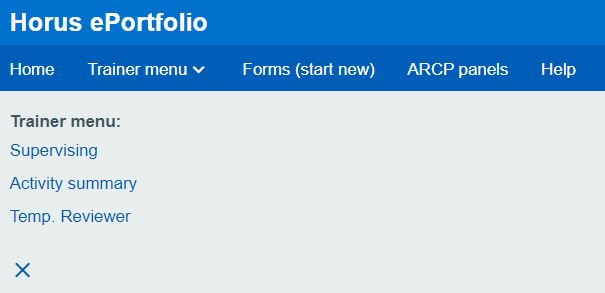
There are three options in the trainer menu:
To see these options, select "Trainer menu" from the main menu. To close the menu, select the "X" in the bottom left corner.
How does a supervisor see the doctors they're supervising?
- Trainer menu › Supervising
- 'Previous', 'Current' and 'Future' supervised foundation doctors/NTGs will appear in three tabs.
These groups are calculated using a FD's/NTG's active rotation. A rotation is considered active for 3 months after its end date, rotations will only move into the 'Previous' group when this period ends.
You can:
- See a FD's/NTG's portfolio by selecting the 'Open portfolio' link.
- Create new forms by selecting one of the quick access links in the grey box on the right.
What is the trainer ‘Activity Summary’?
Users with a "trainer" permission on Horus can view a list of forms they have completed (that is, signed for foundation doctors/NTGs).
- Trainer menu › Activity Summary
- Select 'Advanced filters' to see all the below filters:
- Dates from/to forms were completed
- GMC Number
- First name
- Last name
- Email address
- Portfolio item type (that is, form name - see a list on the Blank Forms page)
- Select 'Filter' to search.
You can view 10, 25 or 50 records at a time.
You can view the completed form directly from this page by selecting 'Open' next to the relevant form.
If required, you can download the page as PDF by using the browser's "Print to PDF" option. Print the page as normal within your browser, then choose "Save as PDF" as the printer output. Exact instructions will vary between browsers, but all popular desktop browsers support this.
The portfolio menu
Where is the portfolio menu?
The portfolio menu is in a different place depending on the type of user you are.
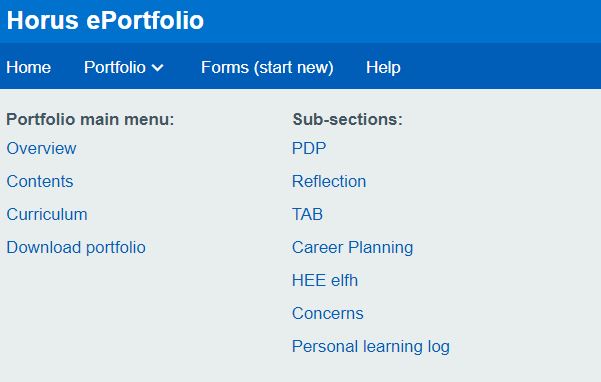
Foundation doctor (or an NTG using Horus to record your own competences):
- 'Portfolio' will be your second main menu item:
Supervisor
- select the relevant foundation doctor from your "Supervising" main menu item.
Administrator
- select the relevant foundation doctor from your "Admin menu" main menu item, "Foundation Doctors" sub-menu.
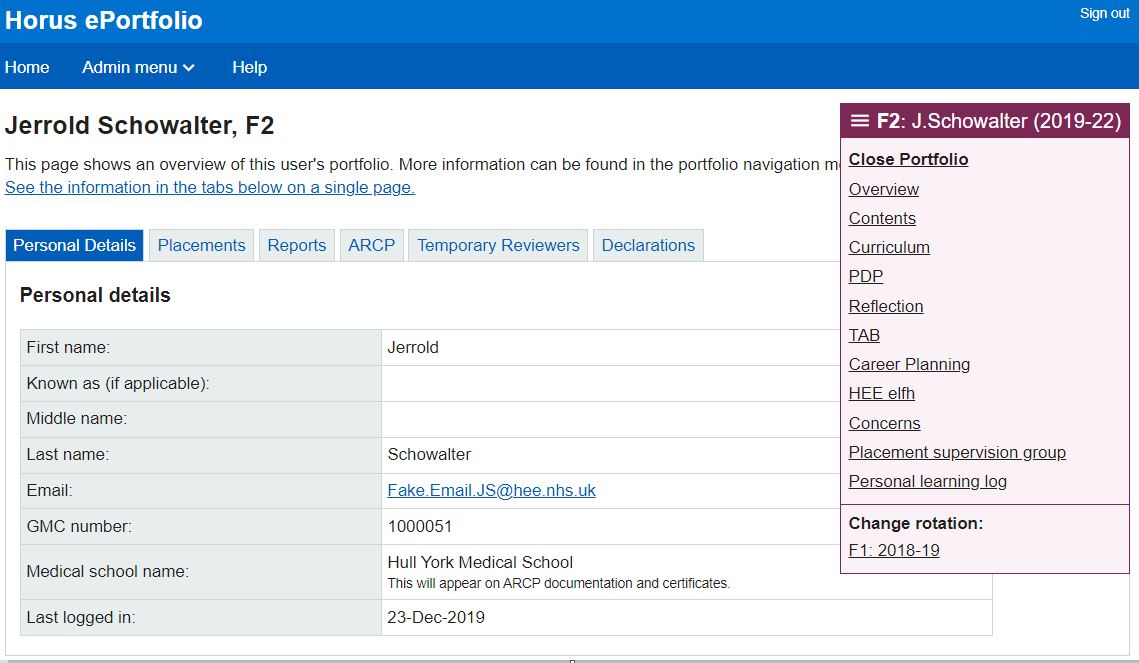
For both supervisors and administrators, the portfolio menu will be on the right hand side, below your main menu bar.
Select the pink bar showing the foundation doctor's rotation details to open the portfolio menu:
What are the portfolio menu items?
Each foundation doctor has access to a set of menu items. All other users who have access to a foundation doctor's portfolio have access to these menu items as well.
- Overview
- Contents
- Curriculum
- Download Portfolio (FD/NTG only)
- PDP
- Reflection
- TAB
- Career Planning
- elfh
- Concerns
- Personal learning log
- SFP supervision form
Learn more about where the portfolio menu is.