Signing in and out
Browse and Search Collapse all
Signing in basics
How do I sign in to my account?
Once you have been registered on Horus, follow these steps to sign in:
- Go to the Horus ePortfolio website by typing https://horus.hee.nhs.uk into your browser (or by clicking the link)
- Enter your email address and password
- Select the 'Sign in' button.
How do I access my account for the first time?
When an account is created for you, you should receive an activation email with a link to a page where you can set up your password.
You can activate your account without the activation email by following the resetting your password process.
What will my activation email look like?
Your Horus ePortfolio activation email will look like this:
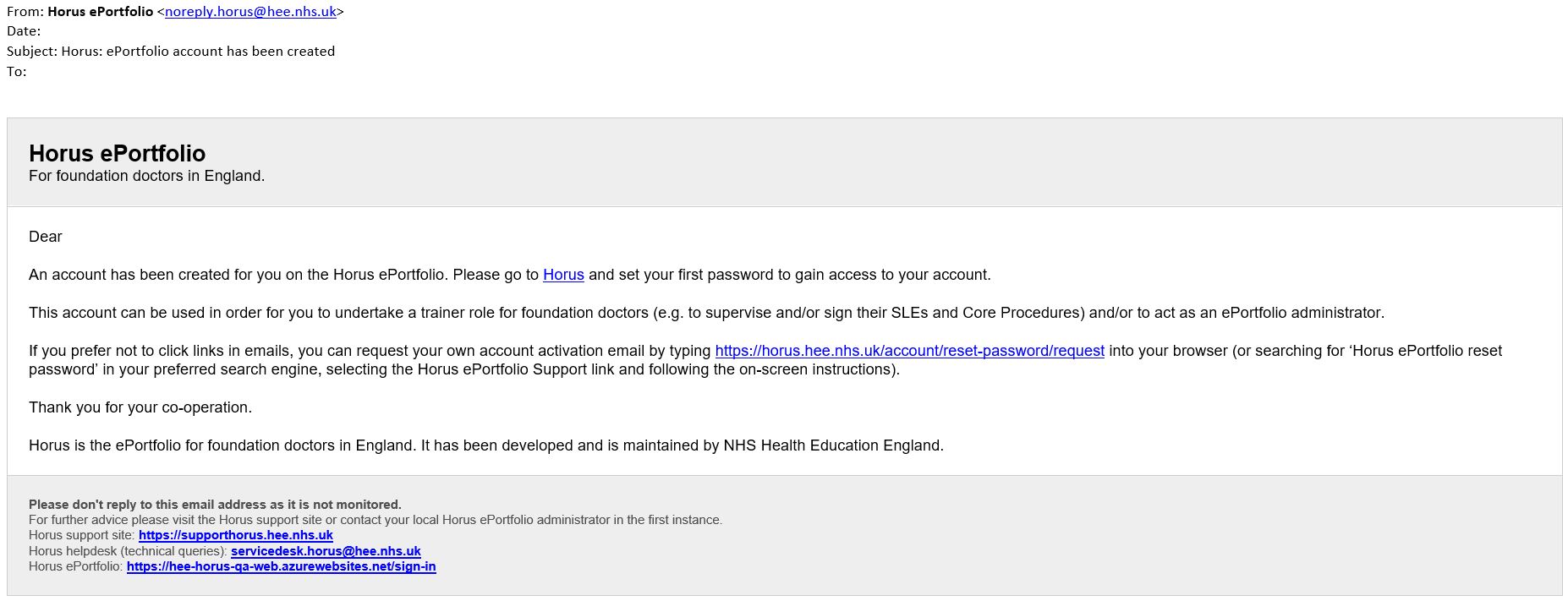
Learn more about what to do if you have not received your activation email yet.
What do I do if the link in my activation email has expired?
- Select "Please go to Horus" in the activation email
- Land on the "this link has expired" message
- Select the "Sign in page" link on that page
- Select the "Reset password (or set password for new account)" link on the sign in page
- Enter email address
- Select "Recover password"
- Find the email in your email account and select the new link to set up your new password
More detailed instructions are available in How do I reset my password?
Problems with signing in
What should I do if I can't sign in to my account?
Ensure you are using the correct email address and password.
Learn more about what to do if you:
- have forgotten the email address with which you're registered on Horus
- can't access the email address with which you're registered on Horus
If you are unsure of your password, but do know your registered email address, then reset your password.
Signing out
How do I sign out of Horus?
The 'Sign out' link is in the top right corner of the page and it is accessible from every page of Horus ePortfolio.
Why do I need to sign out?
In order to protect your account and your e-portfolio contents, you should always sign out of the system when you have finished working. This is particularly important if you are working on a shared computer (e.g. in a hospital computer room).
Your Horus session will expire and you will be logged out if you are inactive for 3 hours.
Two factor authentication
What is two factor authentication (2FA)?
Two factor authentication (2FA), is a security process that requires two different forms of identification to access an account or system. This extra layer of security helps protect accounts from unauthorised access.
Why have extra security measures been added to Horus ePortfolio and can I 'opt out' of them?
Two factor authentication is being rolled out across all NHS England systems and Horus ePortfolio is no exception. Two factor authentication does not only protect Horus ePortfolio accounts from unauthorised access, it protect NHS servers and vital digital infrastructure which is why it is being introduced.
Horus ePortfolio users do not have the option to 'opt out' of these security changes.
Are Horus ePortfolio users required to use two factor authentication (2FA)?
All users of Horus ePortfolio are required to use a form of two factor authentication to protect their account. Which form of 2FA they need to use firstly depends on their level of permissions.
Learn more about the types of 2FA used by Horus ePortfolio in this guide to Horus 2FA methods .
What are the types of two factor authentication (2FA) that Horus uses?
Horus ePortfolio will be using two different types of two factor authentication.
Firstly all users will be required to use email code verification 2FA which is where a 6-digit code is emailed to the user upon each login. The user is then required to enter the 6-digit code on Horus to access their account.
Secondly all users with Foundation School level permissions and higher will be required to use an authenticator app to access their account. This is where the user's Horus ePortfolio account is linked to an authenticator app and a 6-digit code is required upon each login. The user is required to access their authenticator app and input the 6-digit code which is displayed into Horus to access their account.
Please note all users will have the option to use an authenticator app instead of email code verification 2FA if they wish to do so.
Learn how to set up email code verification 2FA in this email code verification 2FA guide , or learn how to set up and link an authenticator app in this authenticator app 2FA guide .
Do I have the option to use the Authenticator app even if my level of permissions levels do not require it?
Yes, all users have the option to use an authenticator app instead of email code verification two factor authentication (2FA) if they choose to.
Learn how to set up authenticator app two factor authentication (2FA) in this authenticator app 2FA guide .
How do I set up email code verification two factor authentication (2FA) for my Horus ePortfolio account?
- Access your email account and locate the email 'Horus authentication code'
- Input the 6-digit verification code from your email notification into Horus and select the 'Continue' button
I did not receive my email code verification notification email in my inbox. What do I do?
If you are unable to locate the 'Horus authentication code' email in your inbox you should firstly check your spam/junk folders in your email account.
If you are still unable to locate the email you can request a new 6-digit verification code by selecting the 'Resend the code' link.
Please note, once a new 6-digit verification code is requested, any previous 6-digit codes can no longer be used.
How do I set up authentication app two factor authentication (2FA) for my Horus ePortfolio account?
- Access the app store and download & install the authenticator app (Microsoft Authenticator, Google Authenticator etc.)
- Log into your Horus ePortfolio account on a desktop/laptop computer
- Select your name in the top right corner to access the 'my account' page
- Select 'Two factor authentication'
- Open the authenticator app and scan the QR code.
- If you are unable to scan the QR code you can select 'Set up manually' on Horus and input the 52-digit code into your authenticator app
- Select the account on the authenticator app and input the 6-digit code (in the required 30 seconds) into Horus ePortfolio
- Select 'Confirm verification code'
I do not have access to a work mobile phone to use an authenticator app. Are there any alternative solutions?
A mobile phone is not required to use an authenticator app. Desktop versions of authenticator apps exist and can be used to link to Horus ePortfolio accounts.
How do I switch to using the authenticator app instead of email code verification?
Users have the option to use the authenticator app instead of email code verification even if their level of permissions doesn't require it.
The authenticator app can be set up by following this authenticator app setup guide .
How do I disable using the authenticator app if my level of permissions do not require me to use it?
If a user is not required to use the authentication app for Horus ePortfolio but has set it up anyway, they can disable it and use the email code verification two factor authentication by:
- Log into Horus ePortfolio
- Select your name in the top right corner of the page to access the 'My account' page
- Select the 'Disable two factor authentication' link
- Enter your password and select the 'Disable two factor authentication' button
Please note: Some authenticator apps do not automatically remove accounts. After following the above steps to disable the use of the authenticator app you may need to manually remove/delete the account from the authenticator app.
As an Administrator can I switch a user back to email code verification two factor authentication instead of using an authenticator app?
Yes, an administrator can disable a user from using an authenticator app. They can do this by:
- Search for the users account via Admin menu › Foundation doctors/NTG
- Select 'Account' against the appropriate user
- Select the 'Disable two factor' button
- Read the pop-up warning and select 'Disable two factor authentication' button
I remember my Horus password but no longer have access to my registered email address. Can I still log into Horus ePortfolio?
No, users will need both their password and access to their registered email address to log into Horus ePortfolio. This is because each time you log in, a 6-digit verification code will be emailed to you.
If you no longer have access to your registered email address your will need to contact your local Horus ePortfolio administrator (this will be your local postgraduate centre administrator) and they will be able to update your account details.